Sphere IPTV on Samsung & LG Smart TV: Full Setup Guide
Your Samsung or LG TV can run Sphere IPTV directly — no Firestick needed. Here's how to choose an app, activate it and load your playlist.
Can you watch Sphere IPTV on a Smart TV?
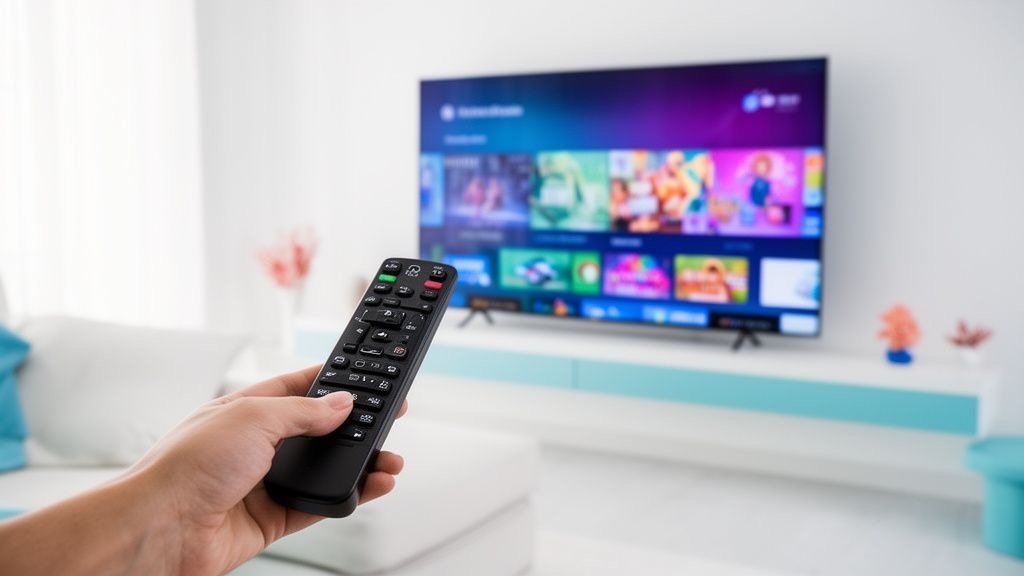
Yes. Samsung TVs (Tizen) and LG TVs (webOS) have their own app stores with IPTV players. You install a player, link it to your Sphere IPTV playlist and watch everything — live TV, sports, the TV guide and VOD — with your normal TV remote.
Best Smart TV apps for Sphere IPTV
| App | Samsung | LG | Why |
|---|---|---|---|
| IBO Player | ✔ | ✔ | Stable, modern, supports Xtream codes |
| Smart IPTV | ✔ | ✔ | Classic, simple M3U player |
| SS IPTV | ✔ | ✔ | Free, light interface |
| Hot IPTV | ✔ | ✔ | Fast zapping, good for sports |
Most TV players offer a free trial and then charge their own small one-time activation fee. That fee goes to the app developer and is separate from your Sphere IPTV subscription.
Step-by-step: Sphere IPTV on Samsung TV
- Press Home → Apps and search for IBO Player.
- Install and open it. The app shows a MAC address and a device key.
- Send both to Sphere IPTV on WhatsApp — we add your playlist for you. Or add your Sphere IPTV M3U link yourself on the player's website.
- Restart the app. Your Sphere IPTV channels, guide and VOD appear.
Step-by-step: Sphere IPTV on LG TV
- Open the LG Content Store and search for IBO Player (or another player above).
- Install and open it, then note the MAC address on screen.
- Send it to Sphere IPTV support, or upload your playlist on the player's website.
- Close and reopen the app to load your channels.
Which TVs are supported?
Samsung TVs from 2018 onwards and LG TVs with webOS 4 or newer work best. On older models the app store may not have recent players — in that case, a Firestick or Android TV box is the easiest solution. See Sphere IPTV on Firestick and Sphere IPTV on Android TV box.
Tips for smooth Sphere IPTV on your TV
- Use Ethernet if the router is nearby — TV Wi-Fi chips are often weaker than a streaming stick's.
- Disable Instant On / Quick Start if the app stops loading after standby.
- Update the TV firmware in Settings → Support → Software update.
- Choose FHD over 4K on slower lines — see the Sphere IPTV 4K speed guide.
Smart TV vs Firestick for Sphere IPTV
A Smart TV app is the simplest setup — one remote, no extra device. A Firestick or Android TV box gives you more apps (like TiviMate), faster menus and easier updates. Many Sphere IPTV customers start on the TV app and add a Firestick later for sports nights.
Full device guide: Sphere IPTV on Smart TV. Want to test first? Get the free Sphere IPTV trial.
Sphere IPTV FAQ
Is the MAC address safe to share with Sphere IPTV?
Yes. It only identifies your TV app so we can link your playlist; it's not a password.
Do I pay for the TV app?
Many TV players charge their developer a small one-time fee after a free period. It's separate from Sphere IPTV.
Does Sphere IPTV work on Sony or Philips TVs?
Yes — they run Android TV / Google TV, so follow the Android TV box guide.